KaraokeHost Manual
A practical guide to setting up and using KaraokeHost 2.2 for macOS.
Version: 2.2
App: KaraokeHost for macOS
Minimum macOS: 15.0
What's New in Version 2.2
- Break Scene playlists are now managed directly in Break Scenes > Playlists, with integrated controls for creating, adding scenes, renaming, deleting, removing, reordering, setting Still Duration, and choosing whether a playlist loops.
- Break Scene playlists automatically advance through mixed videos, still images, and Sequences.
- Videos advance when they finish, still images advance after the playlist's Still Duration, and Sequences advance after the complete Sequence finishes.
- With Loop Playlist enabled, playback returns to the beginning automatically. With looping off, automatic advancement ends after the final playable item and the final scene remains displayed.
- Unavailable playlist entries remain in the playlist and are skipped during playback rather than being removed.
- Collections can import supported photos and MP4 videos directly using Add Photos or Videos…. Imported items also become normal My Scenes.
- Collections can be added directly to an existing or new Break Scene playlist without duplicating scenes already in that playlist.
- Selected scenes in normal Library and Type browsers can be added directly to an existing or new playlist using standard Mac multi-selection.
Contents
- What KaraokeHost Is
- Using KaraokeHost Beyond Karaoke
- What KaraokeHost Does Not Include
- Supported File Types
- First-Time Setup
- Choosing Your Karaoke Folder
- Loading a Catalog CSV
- Main Show Screen
- Library Management
- Singer Queue
- Editing Singers, Singer Notes, and Show Notes
- Played-Singer Notes
- Adding Singers
- Playback Controls
- Pause and Resume
- Key Change
- Tempo Control
- Saved Queue Key and Tempo Settings
- Audience Display
- Break Scenes
- Included Scenes
- My Scenes
- Sequences
- Break Scene Playlists
- Collections, Favorites, and Show Scenes
- Audience Controls
- Up Next, Announcements, and Countdown
- Filler Music
- Filler Music Playlists
- Saved Shows
- Settings
- Pre-Show Checklist
- Display Recovery
- End Show Workflow
- Troubleshooting
- Known Limitations
- Support
What KaraokeHost Is
KaraokeHost is a native macOS app for running karaoke with your own compatible karaoke media files while managing singers, songs, playback, notes, Filler Music, and an external Audience Display.
KaraokeHost also includes a visual presentation system built around Break Scenes, Sequences, Break Scene playlists, Audience Controls, Saved Shows, Collections, Show Scenes, Announcements, and Countdown.
This means KaraokeHost can run a traditional karaoke show, karaoke as one part of a larger event, or audience-facing visual presentations where karaoke is not used at all.
Using KaraokeHost Beyond Karaoke
The Audience Display and Break Scene tools can be useful even when karaoke is not part of the event.
Examples include:
- Parties and family gatherings
- Community and club events
- Receptions and special occasions
- Holiday events
- Venue background entertainment
- Photo and video presentations
- Promotional displays
- Sponsor messages
- Business or event advertising
- Upcoming-event graphics
- Food, drink, or venue specials
- Informational displays
- Announcements and Countdown displays
Break Scene playlists can help keep visual material moving automatically during breaks, parties, promotions, or other parts of an event by combining videos, still images, and Sequences into an ordered presentation.
KaraokeHost does not provide an advertising service or ad-management platform. Instead, you can use your own photos and videos as Break Scenes, Sequence content, or playlist content, including promotional or advertising material you are authorized to display.
What KaraokeHost Does Not Include
KaraokeHost does not include karaoke songs.
KaraokeHost is not a karaoke music store, streaming service, subscription song catalog, cloud song library, or licensing service.
You provide your own compatible karaoke files. You are responsible for any permissions or licenses required for your use of those files and for any photos, videos, promotional material, or other media you display.
Supported File Types
KaraokeHost supports:
- MP3/CDG karaoke files
- ZIP files containing matching MP3/CDG files
- MP4 karaoke video files
Key change and tempo control are available for MP3/CDG, ZIP/CDG, and MP4 karaoke songs.
MP3/CDG files
MP3/CDG karaoke songs usually come as a matched pair:
- An
.mp3audio file - A matching
.cdggraphics/lyrics file
The MP3 and CDG files should have matching names and be stored together.
ZIP/CDG files
KaraokeHost also supports ZIP files that contain matching MP3 and CDG files.
MP4 files
MP4 karaoke videos are supported. MP4 songs contain their own video and audio and support key and tempo adjustment in KaraokeHost.
First-Time Setup
When you first use KaraokeHost, choose the folder where your karaoke files are stored.
KaraokeHost will use that folder to find your compatible karaoke songs.
For best results, keep your karaoke files organized in a dedicated karaoke folder or external drive.
Choosing Your Karaoke Folder
Use the folder selection control in KaraokeHost to choose the folder that contains your karaoke files.
If your songs are stored on an external drive, make sure the drive is connected before opening KaraokeHost or before choosing the folder.
If you move your karaoke files to a different location, choose the new folder in KaraokeHost so the app can find them again.
Loading a Catalog CSV
The Load Catalog CSV button is an optional tool for users who have a separate song catalog file.
Some karaoke collections contain files with short codes or unclear filenames instead of complete artist and song-title information. A catalog CSV can help KaraokeHost match those codes to more readable song information when the catalog file contains matching data.
Most users do not need to load a catalog CSV. If your karaoke files already show useful artist and title information, you can ignore this button.
When a catalog CSV may be useful
- Your karaoke files use code-style names instead of clear artist and title names.
- You have a separate CSV catalog that identifies those codes.
- You want KaraokeHost to show more useful song information where possible.
How would I get a catalog CSV?
A catalog CSV may come from a song list you already have, an export from other karaoke library software, a spreadsheet you created yourself, or catalog information that came with your own karaoke collection.
The catalog CSV must match your actual karaoke files to be useful. A random song catalog from the internet usually will not help unless it uses the same codes or filenames as your own collection.
A catalog CSV does not provide karaoke songs, music downloads, streaming, or licensing. It is only a text-based list that may help KaraokeHost display clearer song information for files with code-style or unclear names.
Important notes
- A catalog CSV does not add songs to your collection.
- A catalog CSV does not provide karaoke music, downloads, streaming, or licensing.
- The CSV must contain useful information that matches your files.
- If you do not have a catalog CSV, you can ignore this feature.
Main Show Screen
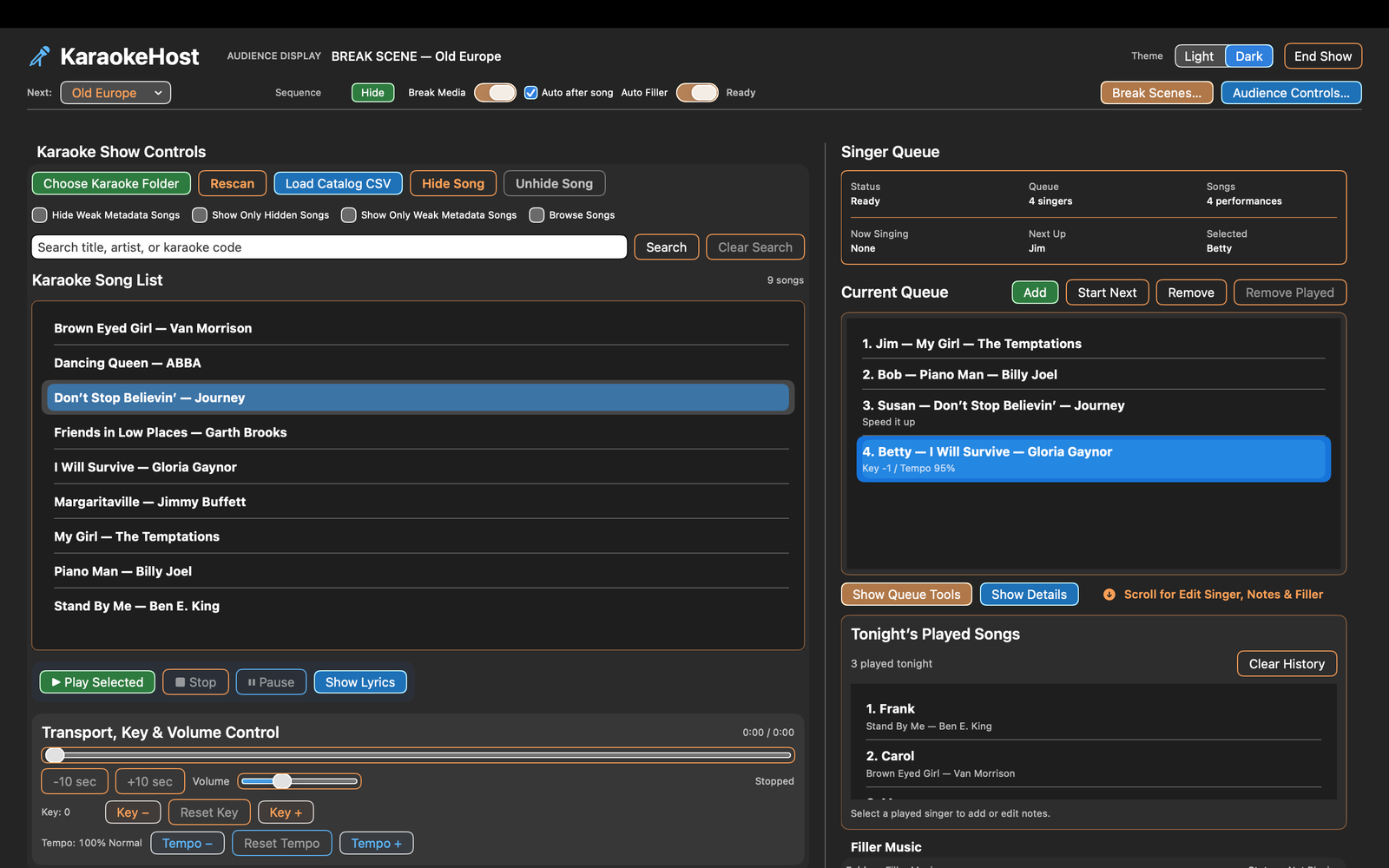
The main screen is where you search for songs, add singers, manage the queue, control playback, use Filler Music, prepare Break Scenes or Break Scene playlists for the Audience Display, and manage the practical flow of a show or event.
Click screenshots on this website to enlarge them.
Library Management
KaraokeHost includes tools for managing large karaoke libraries.
- Hide Song
- Unhide Song
- Show Only Hidden Songs
- Hide Weak Metadata Songs
- Show Only Weak Metadata Songs
Weak metadata songs are files whose filenames do not contain enough information to reliably identify the artist or title.
Singer Queue
The Singer Queue helps you keep track of who is singing next.
Add singers as requests come in. KaraokeHost keeps the list organized so you can continue running the event without manually tracking the order elsewhere.
Editing Singers, Singer Notes, and Show Notes
KaraokeHost includes tools for editing singer information and keeping notes during a show.
Editing a singer name
If a singer’s name needs to be corrected after they have been added to the queue, select the singer and update the name in the singer details area.
Singer notes
Singer notes can be used to remember details about a specific singer, such as preferred key changes, song preferences, or other helpful hosting notes.
Show notes
Show notes can be used for general notes about the current show, event, or hosting setup.

Played-Singer Notes
KaraokeHost lets you keep notes for singers who have already performed during the show. These notes can help you remember singer preferences, show details, or follow-up items after a performance.
Adding Singers
To add a singer:
- Search for the song.
- Select the song.
- Choose the add option.
- Enter the singer’s name.
- Confirm the entry.
Singers can be added while a song is playing, allowing the show to continue without stopping playback.
Playback Controls
KaraokeHost includes playback controls for running karaoke songs during a show.
Depending on the file type and current playback state, controls may include starting the next singer, stopping playback, pausing and resuming playback, adjusting volume, seeking within the track, and using time-jump controls.
Pause and Resume
Pause and Resume are available during playback. Pausing temporarily stops playback without advancing the Singer Queue or losing the current playback position.
Key Change
Key change is available for MP3/CDG, ZIP/CDG, and MP4 karaoke songs.
This can help adjust a karaoke song to better fit a singer’s vocal range.
Tempo Control
Tempo control is available for MP3/CDG, ZIP/CDG, and MP4 karaoke songs.
Tempo can be adjusted from 75% to 125% of normal speed in 5% increments.
Saved Queue Key and Tempo Settings
KaraokeHost can remember key and tempo settings for a queue entry. This is useful when a singer prefers a song in a different key or at a different tempo.
Audience Display
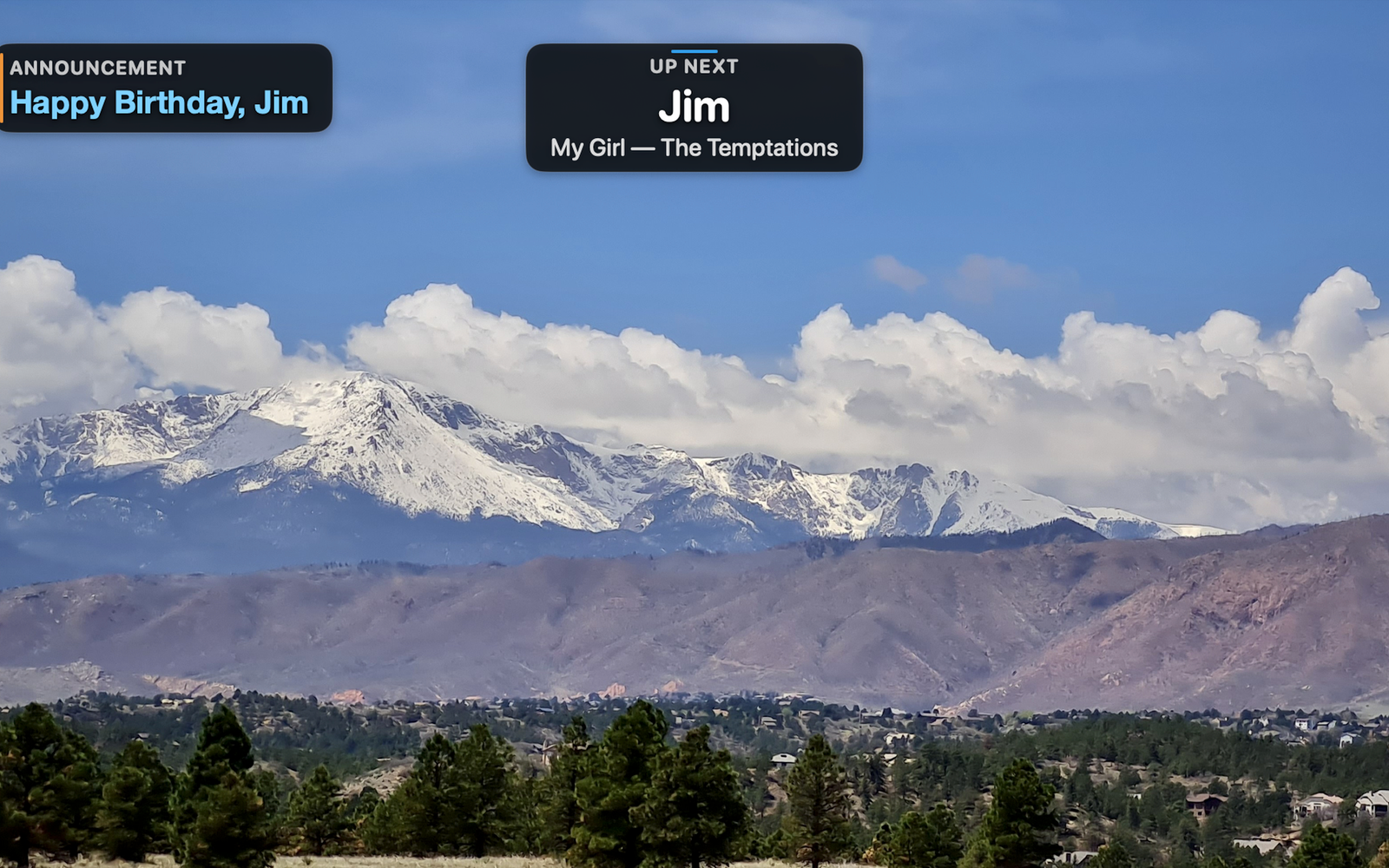
KaraokeHost is designed to use a separate Audience Display for a TV, projector, or other connected screen.
During karaoke, the host can keep the main controls on the Mac while the singer or audience sees lyrics or MP4 video on the external display.
The Audience Display can also show Break Scenes, Sequences, Break Scene playlists, Up Next information, Announcements, and Countdown.
This makes the Audience Display useful before karaoke begins, between performances, during breaks, or at events where karaoke is not being used.
Using a TV or projector
Connect your TV or projector to your Mac using the appropriate adapter or cable. Open macOS display settings to confirm the external display is detected.
An extended desktop is recommended so the host controls remain on the Mac while audience content appears on the external display.
Some Macs and hardware setups can mirror the same external output to more than one display by using an HDMI splitter. Results depend on your Mac and connected hardware.
Break Scenes
Break Scenes are visual scenes that can be shown on the Audience Display independently of karaoke playback.
A Break Scene can be a still image, a standalone video, or a Sequence. Break Scenes can be used before a show, between singers, during breaks, as background entertainment, or for events where karaoke is not used at all.
Examples include scenic images, relaxing visuals, holiday material, event photos, promotional graphics, sponsor messages, advertising, venue information, and other audience-facing content.
Included Scenes
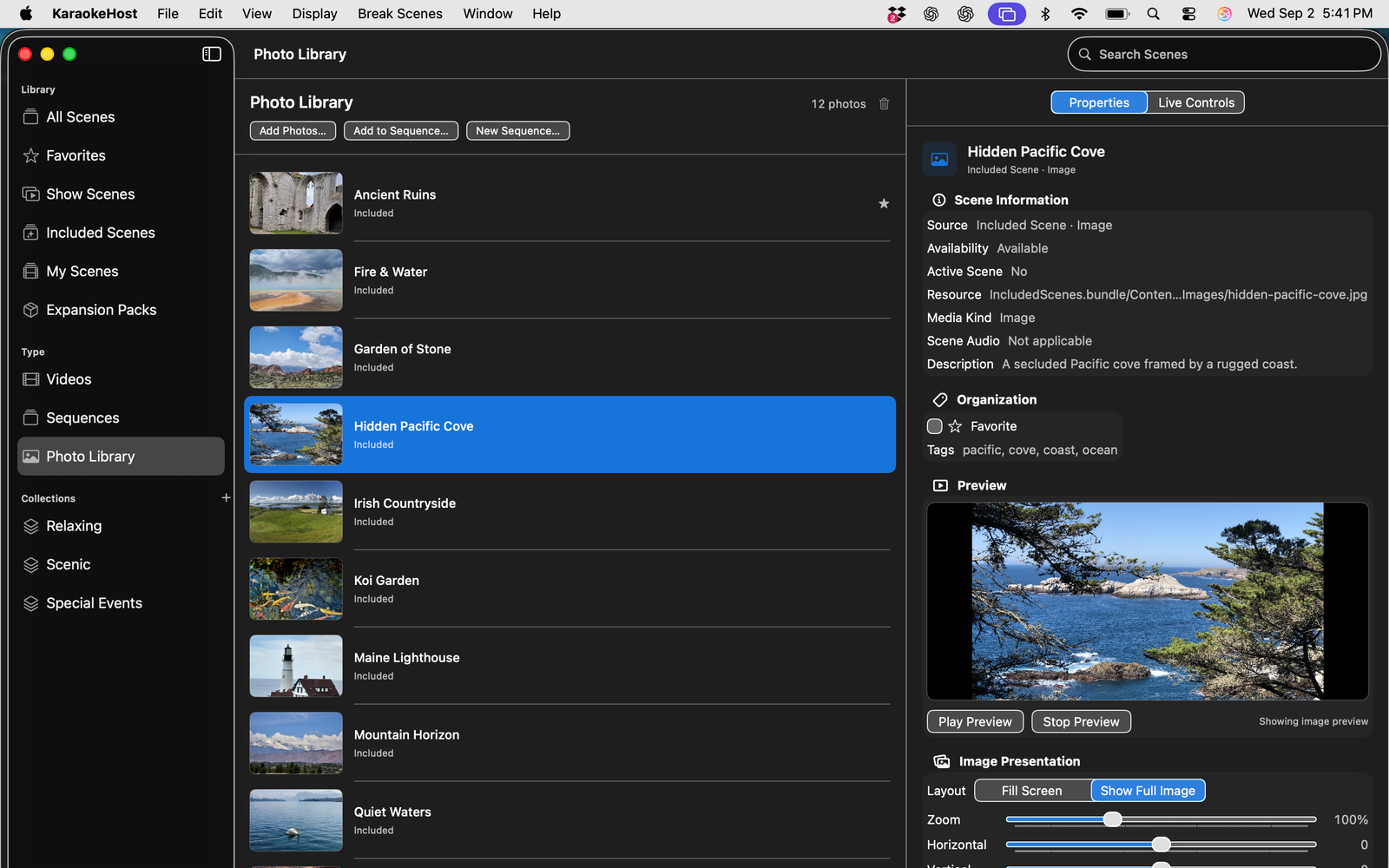
KaraokeHost provides 24 ready-to-use Included Break Scenes:
- 12 still images
- 6 videos
- 6 Sequences
Included media is organized around Relaxing, Scenic, and Special Events starter Collections.
Included Scenes are provided both as ready-to-use content and as examples of the types of visual presentations you can create with your own media.
Downloading, removing, and restoring Included Media
Included Break Scene media is optional. On first run, KaraokeHost can offer Download Included Media or Not Now.
If you download the Included Media and later want to reclaim the storage space, use Remove Included Media. The media can be downloaded or restored again later.
Removing Included Media does not remove its references from your Break Scene playlists. Those entries remain in the playlist but are unavailable while the corresponding media is not installed.
During playlist playback, unavailable entries are skipped automatically. If the Included Media is downloaded or restored later, those playlist entries become usable again without rebuilding the playlist.
My Scenes
My Scenes is where you can add and manage your own Break Scene content.
Use your own supported photos and videos to create visual material for your events. Your media remains your responsibility, including any permissions or licenses required for public, promotional, or commercial use.
Photos and MP4 videos imported directly into a Collection also become normal My Scenes, so they can later be edited, organized, or used elsewhere in KaraokeHost.
Sequences
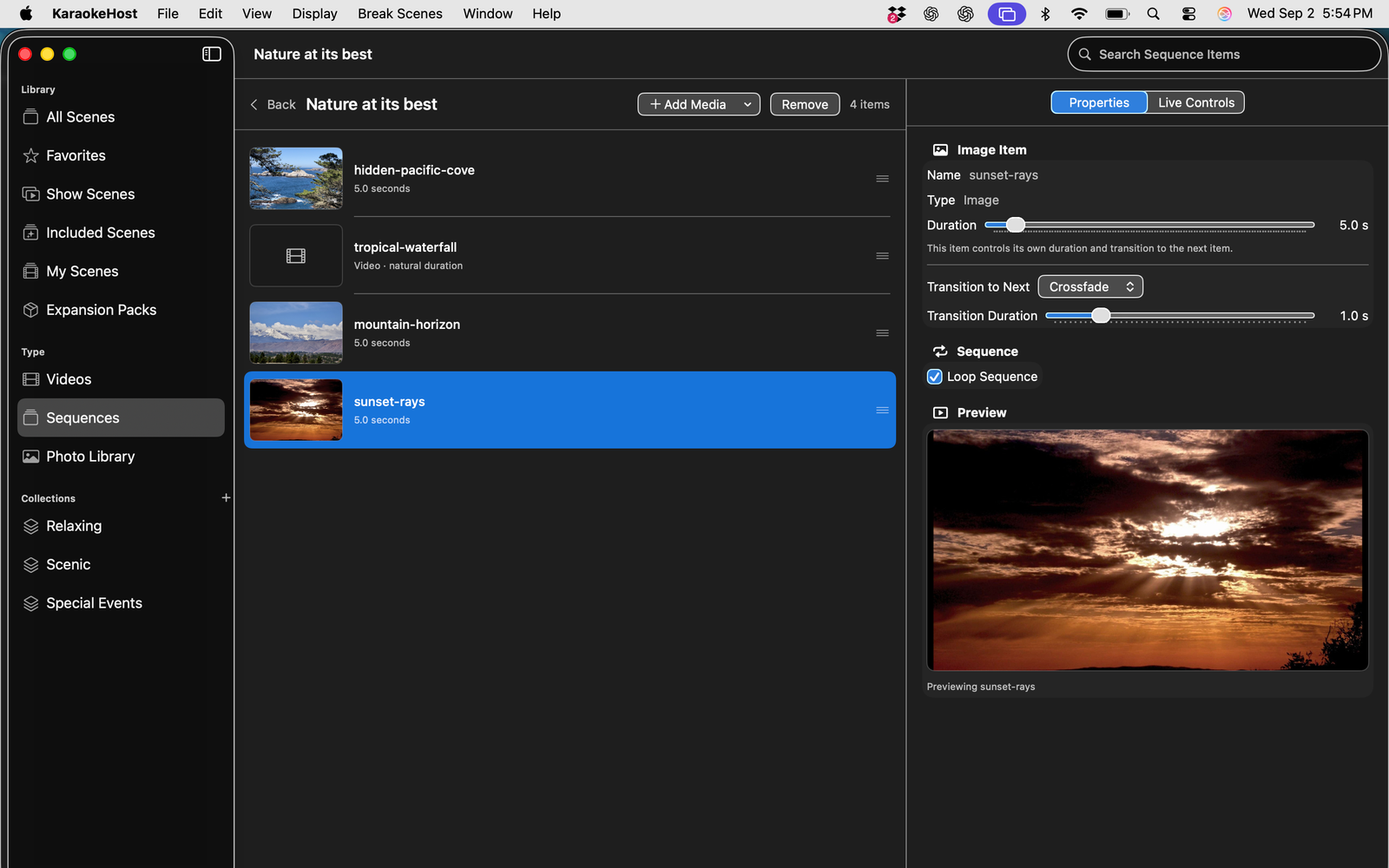
A Sequence is a visual presentation that combines multiple still images and videos into an ordered presentation.
You can control image duration, transitions, and whether the Sequence loops.
Sequence audio behavior
Sequences are designed as visual presentations. Embedded audio from video items inside a Sequence is intentionally muted.
Filler Music can be used as the soundtrack for still-image Break Scenes and Sequences.
A standalone video Break Scene can use its own embedded audio.
Break Scene Playlists
Break Scene playlists let you combine videos, still images, and Sequences into an ordered presentation for the Audience Display.
In KaraokeHost 2.2, playlist creation and management are integrated directly into Break Scenes > Playlists. The separate Break Scene playlist manager used by earlier versions has been retired.
Managing playlists
Open Break Scenes > Playlists to work with your Break Scene playlists.
The first row contains the playlist selector and playlist-level controls:
- Playlist selector: Chooses the playlist you want to view or edit.
- New…: Creates a new playlist.
- Add Scenes…: Adds available Break Scenes to the selected playlist.
- Rename…: Renames the selected playlist.
- Delete…: Deletes the selected playlist.
The second row contains controls for playlist contents and playback behavior:
- Remove: Removes the selected item from the playlist.
- Move Up: Moves the selected playlist item earlier in the playback order.
- Move Down: Moves the selected playlist item later in the playback order.
- Still Duration: Sets how long still-image playlist items remain displayed before automatically advancing.
- Loop Playlist: Controls whether automatic playback returns to the beginning after the final playable item.
Adding scenes to a playlist
Use Add Scenes… in Break Scenes > Playlists to add available Break Scene content to the selected playlist.
Standard Mac multi-selection is supported when selecting scenes. Use Command-click to select individual items or Shift-click to select a range.
Scenes can also be added to playlists directly while browsing Collections, the normal Break Scene Library, or Type categories. These workflows are described in the Collections section below.
Automatic mixed-media playback
A Break Scene playlist can contain any supported mixture of videos, still images, and Sequences. KaraokeHost automatically advances according to the type of item being displayed:
- Videos: Advance automatically when the video finishes.
- Still images: Advance automatically after the playlist's configured Still Duration.
- Sequences: Advance automatically after the complete Sequence finishes.
This allows a single playlist to move continuously through mixed visual material without requiring the host to manually advance each item.
Still Duration
Still Duration controls how long each still-image playlist item remains on the Audience Display before KaraokeHost advances to the next playable item.
Video duration is determined by the video itself, and a Sequence remains active until the complete Sequence finishes.
Loop Playlist
When Loop Playlist is enabled, automatic playlist playback returns to the beginning after the final playable item and continues.
When Loop Playlist is off, automatic advancement ends after the final playable item. The final scene remains displayed on the Audience Display rather than disappearing automatically.
Unavailable playlist entries
A playlist entry can become unavailable if its media is temporarily unavailable. For example, one of your own media files may have been moved or disconnected, or an Included Scene may be unavailable because Included Media has been removed from local storage.
KaraokeHost keeps unavailable entries in the playlist rather than deleting them. During automatic playback, unavailable entries are skipped and playback continues with the next playable item.
If the missing media later becomes available again, the existing playlist entry can be used again without having to add it back to the playlist.
Manual Next
The host can use Next to manually advance to the next playable playlist item.
Manual Next does not wrap from the end of the playlist back to the beginning. Loop Playlist applies to automatic playlist advancement.
Using a playlist from the main window
The main-window Audience Display controls can prepare either an individual Break Scene or a Break Scene playlist. After choosing the item you want, use Show to present the prepared choice on the Audience Display.
This lets you launch a prepared playlist without keeping the full Break Scenes window open during the event.
Collections, Favorites, and Show Scenes
KaraokeHost provides several ways to organize Break Scene content.
Collections
Collections let you group related Break Scenes in a way that makes sense for your own events and workflow.
Adding photos or videos directly to a Collection
While viewing a Collection, choose Add Photos or Videos… to import supported photos or MP4 videos directly into that Collection.
Media imported this way is added to the Collection and also becomes normal My Scenes content. This means the imported scenes can later be edited, organized, or used elsewhere just like other My Scenes.
Adding a Collection to a playlist
To add the currently available scenes from a Collection to a Break Scene playlist:
- Right-click the Collection.
- Choose Add Collection to Playlist.
- Choose an existing playlist or New Playlist….
KaraokeHost adds the currently available scenes from that Collection to the destination playlist. If a scene is already in the destination playlist, it is not added a second time.
Adding selected Library or Type scenes to a playlist
You can also add selected scenes directly to a Break Scene playlist while browsing the normal Library or Type categories.
- Select one or more scenes.
- Use Command-click to select individual scenes or Shift-click to select a range.
- Right-click one of the selected scenes.
- Choose Add to Playlist.
- Choose an existing playlist or New Playlist….
When multiple scenes are selected, they are added to the playlist in their displayed order.
If you right-click a scene that is not part of the current selection, the command applies only to that scene.
Scenes that are already in the destination playlist are not duplicated.
Favorites
Favorites provide quick access to scenes you use frequently.
Show Scenes
Show Scenes let you prepare a smaller group of visual content for the current event so you do not have to browse the full Break Scene library while hosting.
Audience Controls
Audience Controls provide a central place to manage what appears on the Audience Display.
Depending on the current state of the event, these controls can be used for Break Scenes, Break Scene playlists, Up Next information, Announcements, Countdown, and other audience-facing presentation functions.
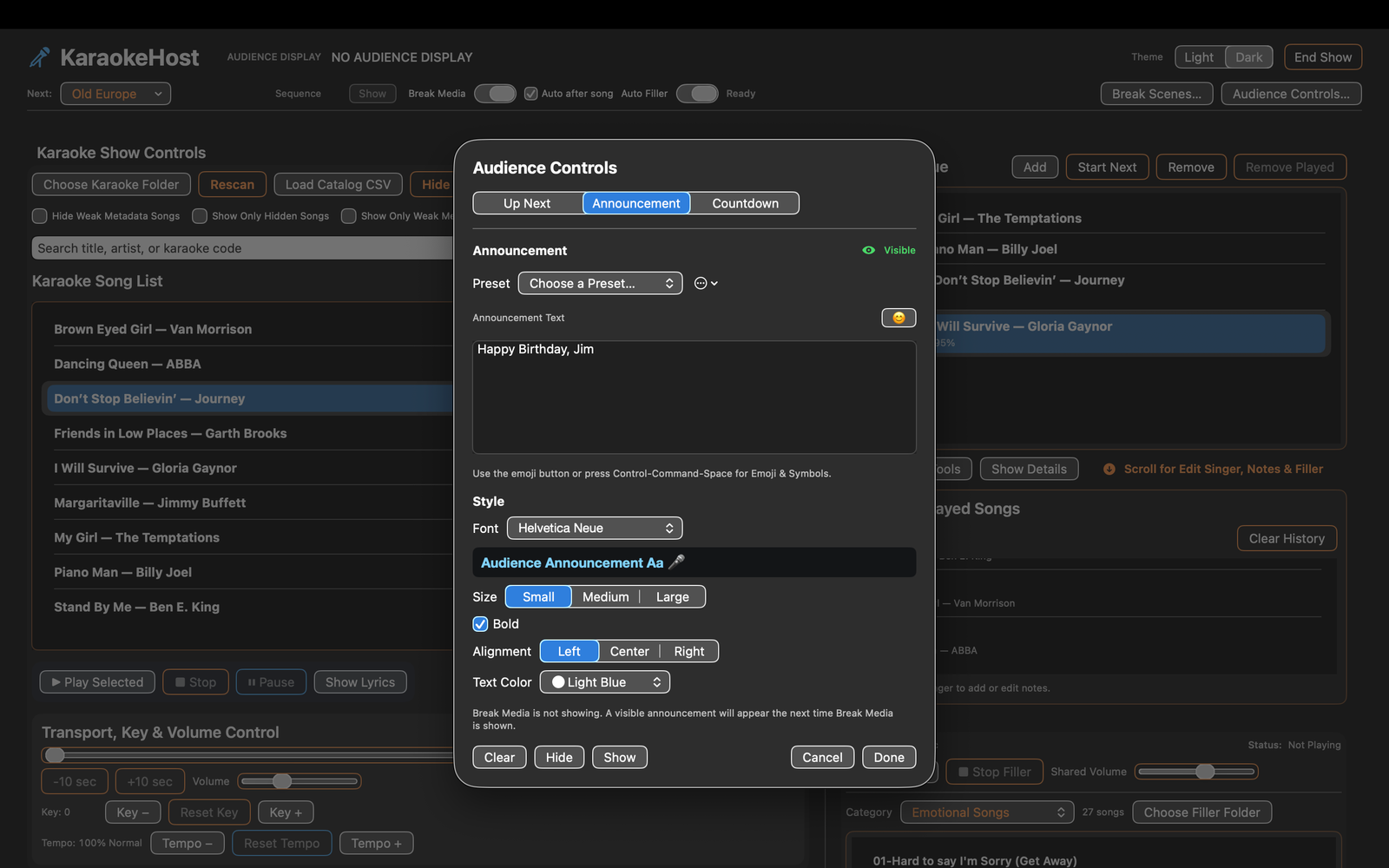
Up Next, Announcements, and Countdown
Up Next
Up Next can show the audience who is coming up next during a karaoke event.
Announcements
Announcements let the host place a message on the Audience Display. This can be useful for host messages, event information, reminders, sponsor information, or other audience-facing text.
Countdown
Countdown can be used when you want the Audience Display to show a timed countdown before an activity, event moment, or restart.
Filler Music
KaraokeHost includes Filler Music for playing background music between singers or during other parts of an event.
Filler Music can also provide the soundtrack for still-image Break Scenes and Sequences.
Filler sources can include available categories and Filler Music playlists. Categories are based on the folder names inside your chosen Filler Music folder. MP3 files placed directly in the main folder appear under All Filler Music.
Filler Music live controls
The main-window Filler Music panel provides controls for managing Filler playback while you host:
- Play Filler / Fade Out: Starts Filler Music. While Filler is playing, the control becomes Fade Out, which gradually fades and stops playback.
- Next: Moves to the next available Filler track.
- Duck / Restore: Temporarily lowers Filler volume so the host can speak without ending playback. Restore returns the volume.
- Shared Volume: Controls the Filler Music volume used by the live Filler system.
- Shuffle / In Order: Chooses how tracks are selected from the current source.
- Auto-Play: Continues an active Filler session by moving on to another track.
- Source: Chooses the Filler category or playlist used for playback.
- Manage Playlists: Opens Filler Music playlist management.
Auto-Play and Auto Filler
Auto-Play and Auto Filler perform different jobs.
Auto-Play controls whether an active Filler Music session continues to another track.
Auto Filler controls whether KaraokeHost automatically starts Filler Music at the appropriate time between karaoke activity.
Filler Music Playlists
KaraokeHost lets you create and manage Filler Music playlists so your playback choices do not have to be limited to the folder structure of your Filler Music library.
Playlist management includes creating, renaming, and deleting playlists, adding and removing tracks, and reordering tracks.
When adding tracks, standard Mac multi-selection is supported. Use Command-click to select individual tracks or Shift-click to select a range.
After creating a playlist, choose it from the Filler Music Source control when you want that playlist to supply the music for the current Filler session.
Saved Shows
Saved Shows let you save the state of a show or event and reopen it later instead of rebuilding the setup from the beginning.
This is useful for recurring events, events prepared in advance, and situations where you want to preserve the working state of a show between sessions.
Settings
KaraokeHost includes settings for adjusting the app to your preferred hosting workflow.
Settings may include display behavior, Filler Music behavior, saved volume settings, theme choice, and other practical options.
KaraokeHost supports Light, Dark, and System theme choices.
Pre-Show Checklist
Before an event, confirm:
- Your karaoke library or other required media is available locally.
- Your external Audience Display is connected and detected by macOS.
- Your audio output is correct.
- Your Filler Music folder is available if you plan to use it.
- Your Filler Music playlist and Source are prepared if you plan to use a playlist.
- Your Show Scenes, Favorites, Collections, or Break Scene playlists contain the visual material you expect to use.
- Your Break Scene playlist Still Duration and Loop Playlist settings are appropriate for the presentation you plan to run.
- Any Included Media or your own media needed by a Break Scene playlist is currently available.
- Your volume levels are appropriate.
- Your Mac is using an extended desktop if you want separate host and audience screens.
Display Recovery
If the Audience Display appears black, misplaced, or does not recover correctly after unplugging HDMI, sleep/wake, or display changes, use:
Display > Reset Display Windows
Keyboard shortcut:
Command + Option + R
This is the recommended recovery action if a display window is misplaced or does not appear where expected.
End Show Workflow
The End Show workflow helps you finish a karaoke show by saving or copying a show summary when applicable.
Show summaries can be useful for reviewing the night, keeping notes for future shows, or preserving information about singers and songs.
Troubleshooting
The Audience Display does not appear
- Confirm the TV or projector is turned on.
- Confirm the HDMI cable or adapter is connected.
- Check macOS display settings.
- Use Display > Reset Display Windows.
- Try unplugging and reconnecting the display cable.
- Confirm the external display is configured as expected in macOS.
A Break Scene does not appear
- Confirm the Audience Display is connected and active.
- Confirm the scene's media file is available.
- If it is one of your own scenes, confirm the original file has not been moved, renamed, or removed.
- If it is an Included Scene, confirm the Included Media is currently downloaded.
- Try another Break Scene to determine whether the issue is limited to one item.
A Break Scene playlist does not play as expected
- Open Break Scenes > Playlists and confirm the playlist contains the Break Scenes or Sequences you expect.
- Confirm media used by your own scenes is still available.
- If the playlist uses Included Scenes, confirm the Included Media is currently downloaded if you expect those items to play.
- Remember that unavailable playlist entries remain in the playlist but are skipped during playback.
- Check the Still Duration if still images remain on screen longer or shorter than expected.
- Check whether Loop Playlist is enabled if you expect automatic playback to return to the beginning.
- With Loop Playlist off, automatic playback stops advancing after the final playable item and leaves the final scene displayed.
- Remember that manual Next does not wrap from the end of the playlist back to the beginning.
- Try an individual playlist item to determine whether the issue is limited to one scene or Sequence.
A Sequence has no video sound
This is expected. Embedded audio from video items inside a Sequence is muted by design. Use Filler Music if you want a soundtrack for the Sequence. Standalone video Break Scenes can use their own embedded audio.
A karaoke song does not play correctly
- Confirm the file type is supported.
- For MP3/CDG songs, confirm the MP3 and CDG files are a matching pair.
- For ZIP files, confirm the ZIP contains matching MP3 and CDG files.
- For MP4 files, first test the video in QuickTime Player to confirm the file itself plays correctly.
- Try another song to see if the issue is limited to one file.
Key change or tempo control does not behave as expected
Key change and tempo control are available for MP3/CDG, ZIP/CDG, and MP4 karaoke songs. If a setting does not seem to apply correctly, stop playback, confirm the song type, adjust the key or tempo again, and try playing the song from the queue.
Filler Music does not appear or play as expected
- Confirm your Filler Music folder is selected.
- Confirm the folder contains MP3 files.
- Confirm files are either directly inside the Filler Music folder or inside category folders.
- Check the selected Filler Source if you are using a category or playlist.
- If using a playlist, confirm it contains tracks that are still available.
- Check whether Shuffle or In Order is selected if playback order is not what you expected.
- Remember that Auto-Play continues an active Filler session, while Auto Filler controls whether Filler starts automatically between karaoke activity.
A saved event cannot find media
If media has been moved, renamed, disconnected, or removed since the show or scene was saved, KaraokeHost may not be able to find it. Reconnect external drives and restore the media to its expected location when possible.
Known Limitations
- KaraokeHost does not include karaoke songs.
- KaraokeHost does not provide music licensing, streaming, downloads, cloud song access, or advertising services.
- External display behavior depends on the Mac and connected hardware.
- Sequence video items are visual-only and do not play embedded audio.
- Users are responsible for their own karaoke files, photos, videos, promotional material, advertising, and any permissions or licenses required for their use.
Support
For support, email:
When requesting help, include your Mac model, macOS version, KaraokeHost version and build number, file or media type, external display setup if applicable, and a short description of the issue.
Feature Requests
Feature suggestions are welcome and may help guide future updates.
Send feature requests to:
Not every feature request can be promised or added.